Friday, July 9, 2021

How to get rid of the error “Execution failed with Client received SOAP Fault from server - Security violation for user : fusion_apps_hcm_ess_appid, permission: 192” while running a Report from HCM Extract


To get rid of this permission issue, please follow as per below:

Step 1: Please navigate to the Report under Home > Tools > Reports and Analytics > Browse Catalog > folder path in BI

Step 2: Then select the folder where the report has been put. Click on More > Permissions and make sure BI Administrator Role and BI Consumer Role has been added with access “Full Control”


Thursday, March 18, 2021

How to configure only Read Only Access for an User in Oracle HCM Cloud environment


To give an user fully read-only access we to follow the below steps. This can be done only with setting a Profile Option.


Step 1 : Navigate to Setup and Maintenance —> Tasks —> Search

Step 2 : Search for the task called “Manage Adninistrator Profile Values”

Step 3 : Now in the Profile Option section, pass the Profile Option Code as “FND_READ_ONLY_MODE” and click on search button.

Step 4 : In the Profile Values section, add the User to give read only access.

              Profile Level —> User

              User Name —> Pass the User name here

               Profile Value —> Enabled.

Step 5 : Save and Close


Step 6 : Now sign in with the User credential and you will see a banner message saying 

              “You have read-only access to all applications. You cannot perform updates.”


Wednesday, March 3, 2021

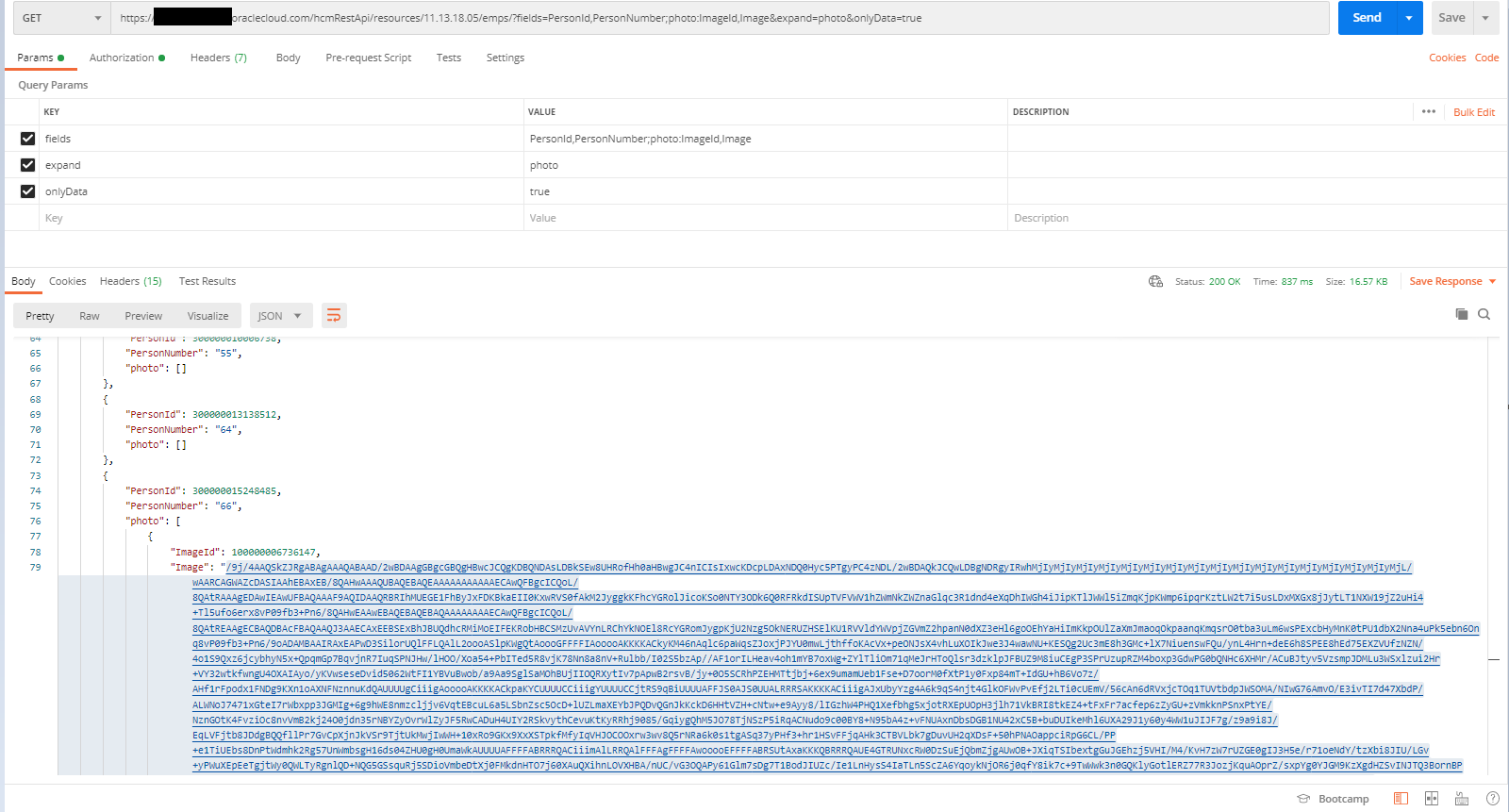
How to export all Person Image details using REST API from Oracle HCM Cloud environment


Steps to export all Person Image details using REST API from Oracle HCM Cloud environment:


Step 1: 

We can use Postman or SOAP UI tool to test the requirement as below. In the "Image" attribute it will return Base64 encoded value of the image.

Operation: GET

URL: https://******************.oraclecloud.com/hcmRestApi/resources/11.13.18.05/emps

Parameter Tab: a> Key = fields 

                                      Value = PersonId,PersonNumber;photo:ImageId,Image

                            b> expand    = photo

                            c> onlyData = true

   Authorization Tab :    Pass Username and Password                     


Step 2: 

Used a decoder to decode Base64 encoded value to an Image as below.


Wednesday, February 24, 2021

Sample Delete HDL / HSDL file to delete Ethnicity in Oracle HCM Cloud environment


Sample Delete HDL file details to delete Ethnicity in Oracle HCM Cloud environment

-------------------------------------------------------------------------------------------------------


SET ENABLE_INCREMENTAL_LOAD_EVENTS Y


METADATA|PersonEthnicity|EthnicityId|PersonId|PersonNumber|LegislationCode|DeclarerId|DeclarerPersonNumber|Ethnicity|PrimaryFlag|SourceSystemOwner|SourceSystemId|GUID

DELETE|PersonEthnicity|||E1222222|US|||5|N|||


Sample Delete HSDL file details to delete Ethnicity in Oracle HCM Cloud environment

-------------------------------------------------------------------------------------------------------


Tuesday, February 23, 2021

Assignment Supervisor Flexfield is not visible in Manage Employment page though it has been configured in the Oracle HCM Cloud environment


Assignment Supervisor Flexfield is not visible in Manage Employment page though it has been configured in the Oracle HCM Cloud environment

----------------------------------------------------------------------------------------------------------

As per Oracle documentation (Doc ID 2424558.1), the below DFFs are not enabled on any UI. They are obsolete and will be removed in the coming release from the setup UI:

PER_ASG_GRADE_STEPS_LEG_DDF
PER_ASG_SUPERVISOR_DF
PER_ASG_WORK_MEASURES_DF


How to enable assignment level security in Oracle HCM Cloud environment


Steps to enable assignment level security in Oracle HCM Cloud environment :

Note : This is a new Feature from 20D onwards.  All the images have been taken from Oracle.

Business Benefits : 

1> Using this feature, security can be locked down to Assignment level.

2> Using this feature Manager and Organizations can see information that is within the Area Of Responsibility.


How to enable this feature :

1> To secure the access for the workers with multiple assignments, we have to enable the profile option called

“ORA_PER_ASSIGNMENT_LEVEL_DATA_SECURITY_ENABLED”.


2> Then we have to run the “Regenerate Data Security Profiles and Grants” ESS job to set and update person security grants and data roles.


3> To enable assignment level security in the employment contract, we must run the Migrate Employment Data process by selecting this run mode: Enhance contract data to enable its use in the responsive pages.


Once the Assignment Security is enabled, you can navigate as per below and can validate.


Implementation Considerations : 

Part 1


Part 2


Part 3


Friday, February 19, 2021

How to create a local File connection (Local FTP Agent) in Oracle Integration Cloud environment

Local FTP Agent can be used to read or write files in Local desktop.

Please follow the below steps to achieve the same.


Step 1: login to OIC environment and navigate to Integration tab.


Step 2: Now click on the Agents tab


Step 3: Under Agents tab click on the button Create Agent Group


Step 4: Put the details as below or can be changes as required and click on the Create button.

In this step the Agent will be created.


Step 5: Now navigate to Agent tab again and download the Agent details as below.


Step 6: Put the zip file in your local drive anywhere (for my case in Desktop/OIC2 folder) and unzip it.


Step 7: Now open the InstallerProfile.cfg file and edit as below and then save it.

In the oic_URL, pass the OIC environment URL

In the agent_GROUP_IDENTIFIER name, pass the Identifier code, which was put while creating the agent in OIC.


----------------------------------------------------------------------------------------------------------

# Required Parameters

# oic_URL format should be https://hostname:sslPort

oic_URL=https://*****************/*****/

agent_GROUP_IDENTIFIER=SM_TEST_DEV_AGENT


# Proxy Parameters

proxy_HOST=

proxy_PORT=

proxy_USER=

proxy_PASSWORD=

proxy_NON_PROXY_HOSTS=

----------------------------------------------------------------------------------------------------------


Step 8: Open Terminal or Command Prompt and check whether jdk is installed or not. If not, please install jdk.

 Command to check Java version:

java -version 


Step 9: Now navigate to the connectivity agent folder (in local machine where it is downloaded or kept) using Terminal or Command Prompt to run the connectivityagent.jar file.

 Command 1 to change directory:

cd Desktop/OIC2/oic_connectivity_agent

 Command 2 to run the connectivity agent jar:

java -jar connectivityagent.jar

It will ask for Login Username and Password. Please provide accordingly.

a>


b>


c>


How to get rid of "Exception during RestAction" error from Employee Self Service functionality while submitting Absence

 After RedWood is being applied, while navigating to Add Absence functionality under Me tab, if it is throwing an Rest error, then follow th...