Showing posts with label Oracle HCM Cloud Integration. Show all posts

Friday, July 9, 2021

How to get rid of the error “Execution failed with Client received SOAP Fault from server - Security violation for user : fusion_apps_hcm_ess_appid, permission: 192” while running a Report from HCM Extract


To get rid of this permission issue, please follow as per below:

Step 1: Please navigate to the Report under Home > Tools > Reports and Analytics > Browse Catalog > folder path in BI

Step 2: Then select the folder where the report has been put. Click on More > Permissions and make sure BI Administrator Role and BI Consumer Role has been added with access “Full Control”


Wednesday, March 3, 2021

How to export all Person Image details using REST API from Oracle HCM Cloud environment


Steps to export all Person Image details using REST API from Oracle HCM Cloud environment:


Step 1: 

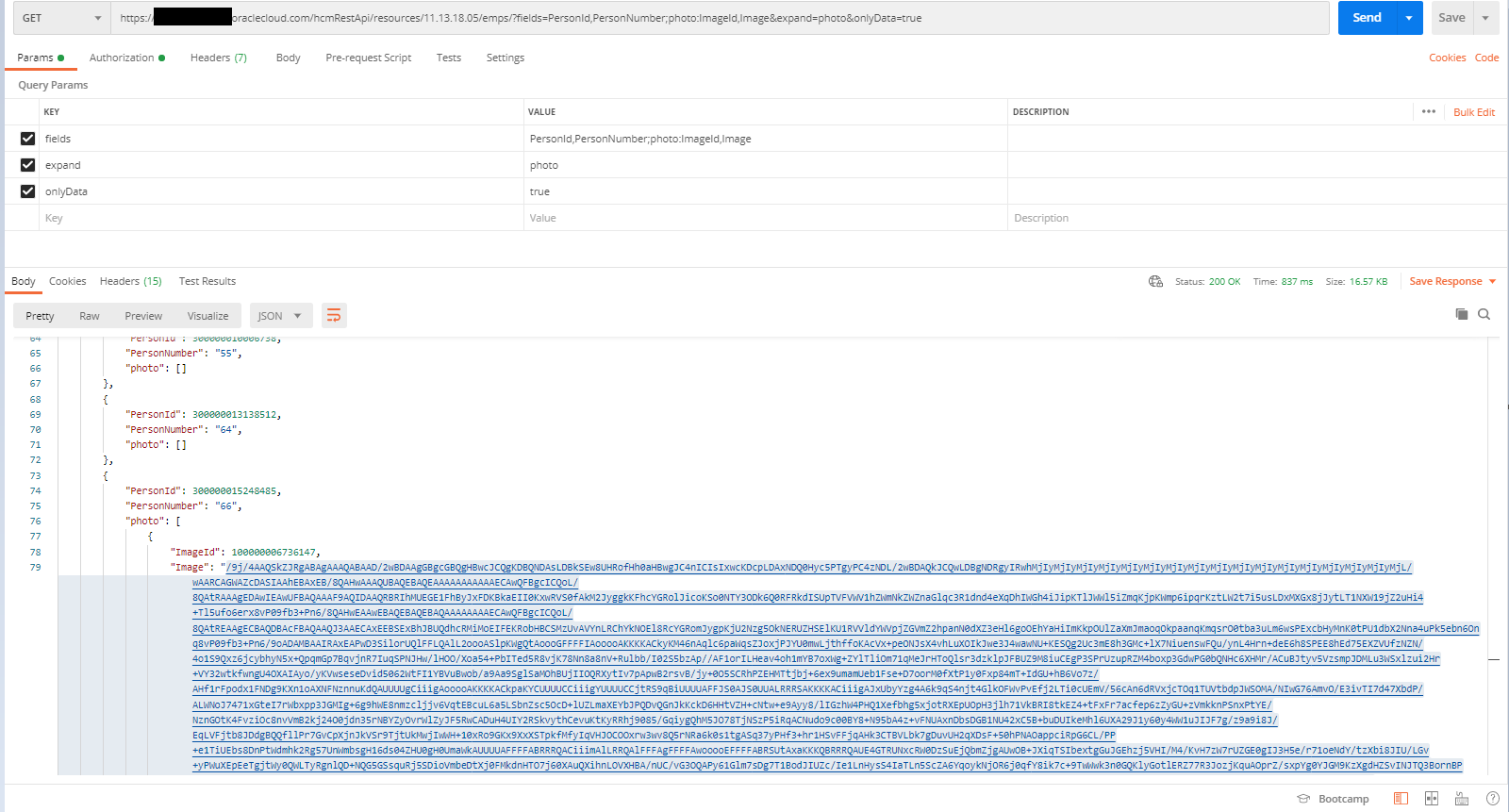
We can use Postman or SOAP UI tool to test the requirement as below. In the "Image" attribute it will return Base64 encoded value of the image.

Operation: GET

URL: https://******************.oraclecloud.com/hcmRestApi/resources/11.13.18.05/emps

Parameter Tab: a> Key = fields 

                                      Value = PersonId,PersonNumber;photo:ImageId,Image

                            b> expand    = photo

                            c> onlyData = true

   Authorization Tab :    Pass Username and Password                     


Step 2: 

Used a decoder to decode Base64 encoded value to an Image as below.


Wednesday, February 24, 2021

Sample Delete HDL / HSDL file to delete Ethnicity in Oracle HCM Cloud environment


Sample Delete HDL file details to delete Ethnicity in Oracle HCM Cloud environment

-------------------------------------------------------------------------------------------------------


SET ENABLE_INCREMENTAL_LOAD_EVENTS Y


METADATA|PersonEthnicity|EthnicityId|PersonId|PersonNumber|LegislationCode|DeclarerId|DeclarerPersonNumber|Ethnicity|PrimaryFlag|SourceSystemOwner|SourceSystemId|GUID

DELETE|PersonEthnicity|||E1222222|US|||5|N|||


Sample Delete HSDL file details to delete Ethnicity in Oracle HCM Cloud environment

-------------------------------------------------------------------------------------------------------


Thursday, May 21, 2020

How to automate value sets values load using Web Service in Oracle HCM Cloud environment

How to automate value sets values load using ESS job process :
--------------------------------------------------------------------------------------------------------------------------

Step 1 : Create a value set value load file (ABC_Value_Set_Value_Load.txt) as below :
--------------------------------------------------------------------------------------------------------------------------

ValueSerCode|Value|TranslatedValue|Description|EnabledFlag|StartDateActive|EndDateActive|SortOrder
ABC|9999 9999 9999 9999||Test ABC1|N|1901-01-01|4712-12-31|1
ABC|9999 9999 9999 9998||Test ABC2|N|1901-01-01|4712-12-31|2
ABC|9999 9999 9999 9997||Test ABC3|N|1901-01-01|4712-12-31|3


Step 2 : Convert the values of the input file (ABC_Value_Set_Value_Load.txt) into Base64 encoding.
--------------------------------------------------------------------------------------------------------------------------

(For testing purpose I have used "https://www.base64encode.org/"). Once the conversion is done, the Base64 value will be looking like below.

VmFsdWVTZXJDb2RlfFZhbHVlfFRyYW5zbGF0ZWRWYWx1ZXxEZXNjcmlwdGlvbnxFbmFibGVkRmxhZ3xTdGFydERhdGVBY3RpdmV8RW5kRGF0ZUFjdGl2ZXxTb3J0T3JkZXIKQUJDfDk5OTkgOTk5OSA5OTk5IDk5OTl8fFRl
c3QgQUJDMXxOfDE5MDEtMDEtMDF8NDcxMi0xMi0zMXwxCkFCQ3w5OTk5IDk5OTkgOTk5OSA5OTk4fHxUZXN0IEFCQzJ8TnwxOTAxLTAxLTAxfDQ3MTItMTItMzF8MgpBQkN8OTk5OSA5OTk5IDk5OTkgOTk5N3x8VGVzdCBB
QkMzfE58MTkwMS0wMS0wMXw0NzEyLTEyLTMxfDM=


Step 3 : Upload the file details in UCM. We get the Document Id in response. This will also upload the file into UCM.
--------------------------------------------------------------------------------------------------------------------------

Web Service details below :

WSDL Url : https://************************.com/publicFinancialCommonErpIntegration/ErpIntegrationService?WSDL
Action    : POST
Method Name : uploadFileToUcm
Description : The method uploads a file to the UCM server based on the document specified.

Request Payload :

<soap:Envelope xmlns:soap="http://schemas.xmlsoap.org/soap/envelope/">
 <soap:Body>
  <ns1:uploadFileToUcm xmlns:ns1="http://xmlns.oracle.com/apps/financials/commonModules/shared/model/erpIntegrationService/types/">
<ns1:document xmlns:ns2="http://xmlns.oracle.com/apps/financials/commonModules/shared/model/erpIntegrationService/">
<ns2:Content>VmFsdWVTZXJDb2RlfFZhbHVlfFRyYW5zbGF0ZWRWYWx1ZXxEZXNjcmlwdGlvbnxFbmFibGVkRmxhZ3xTdGFydERhdGVBY3RpdmV8RW5kRGF0ZUFjdGl2ZXxTb3J0T3JkZXIKQUJDfDk5OTkgOTk5OSA5OTk5IDk5OTl8fFRlc3QgQUJDMXxOfDE5MDEtMDEtMDF8NDcxMi0xMi0zMXwxCkFCQ3w5OTk5IDk5OTkgOTk5OSA5OTk4fHxUZXN0IEFCQzJ8TnwxOTAxLTAxLTAxfDQ3MTItMTItMzF8MgpBQkN8OTk5OSA5OTk5IDk5OTkgOTk5N3x8VGVzdCBBQkMzfE58MTkwMS0wMS0wMXw0NzEyLTEyLTMxfDM=</ns2:Content>
<ns2:FileName>ABC_Value_Set_Value_Load.txt</ns2:FileName>
<ns2:ContentType>txt</ns2:ContentType>
<ns2:DocumentTitle>ABC_Value_Set_Value_Load.txt</ns2:DocumentTitle>
<ns2:DocumentAuthor>Sourav</ns2:DocumentAuthor>
<ns2:DocumentSecurityGroup>FAFusionImportExport</ns2:DocumentSecurityGroup>
  <ns2:DocumentAccount>hcm$/dataloader$/import$</ns2:DocumentAccount>
  </ns1:document>
  </ns1:uploadFileToUcm>
 </soap:Body>
</soap:Envelope>


--------------------------------------------------------------------------------------------------------------------------
*** Note : Please navigate to "https://************************.com/cs" in UCM and check for the file whether the upload is successful or not for testing.
--------------------------------------------------------------------------------------------------------------------------


Step 4 : Submit the ESS Job Request. We get the Request Id in response.
--------------------------------------------------------------------------------------------------------------------------

Web Service details below :

WSDL Url : https://************************.com/publicFinancialCommonErpIntegration/ErpIntegrationService?WSDL
Action    : POST
Method Name : submitESSJobRequest
Description : Submits an ESS job request for the specified job definition

Request Payload :
<soap:Envelope xmlns:soapenv="http://schemas.xmlsoap.org/soap/envelope/" xmlns:typ="http://xmlns.oracle.com/apps/financials/commonModules/shared/model/erpIntegrationService/types/">
<soapenv:Header/>
<soapenv:Body>
<typ:submitESSJobRequest>
<typ:jobPackageName>/oracle/apps/ess/fnd/applcore</typ:jobPackageName>
<typ:jobDefinitionName>FndValueSetUploadServiceJob</typ:jobDefinitionName>
<typ:paramList>ABC_Value_Set_Value_Load.txt</typ:paramList>
<typ:paramList>hcm/dataloader/import</typ:paramList>
</typ:submitESSJobRequest>
</soapenv:Body>
</soap:Envelope>


Step 5 : Get the status of the ESS Job submit. We get the Job status in response. Pass the request id here what was received in web service response from step 4.
--------------------------------------------------------------------------------------------------------------------------

Web Service details below :

WSDL Url : https://************************.com/publicFinancialCommonErpIntegration/ErpIntegrationService?WSDL
Action    : POST
Method Name : getEssJobStatus
Description : Obtains the execution status of the submitted ESS job.

Request Payload :

<soap:Envelope xmlns:soapenv="http://schemas.xmlsoap.org/soap/envelope/" xmlns:typ="http://xmlns.oracle.com/apps/financials/commonModules/shared/model/erpIntegrationService/types/">
<soapenv:Header/>
<soapenv:Body>
<typ:getEssJobStatus>
<typ:requestId>181036</typ:requestId>
</typ:getEssJobStatus>
</soapenv:Body>
</soap:Envelope>


Step 6 : Downloads the ESS job output and the logs as a zip file : We get the log file details in response (in binary format)
--------------------------------------------------------------------------------------------------------------------------

Web Service details below :

WSDL Url : https://************************.com/publicFinancialCommonErpIntegration/ErpIntegrationService?WSDL
Action    : POST
Method Name : downloadESSJobExecutionDetails
Description : Downloads the ESS job output and the logs as a zip file.

Request Payload :

<soap:Envelope xmlns:soapenv="http://schemas.xmlsoap.org/soap/envelope/" xmlns:typ="http://xmlns.oracle.com/apps/financials/commonModules/shared/model/erpIntegrationService/types/">
<soapenv:Header/>
<soapenv:Body>
<typ:downloadESSJobExecutionDetails>
<typ:requestId>181036</typ:requestId>
</typ:downloadESSJobExecutionDetails>
</soapenv:Body>
</soap:Envelope>


--------------------------------------------------------------------------------------------------------------------------
*** Note : To get the successful insert,update and error details (feedback), the log file should be read. Log file will be having the details of summary.
--------------------------------------------------------------------------------------------------------------------------


Step 7 (Optional): To get the details of the input file below web service can be used. Pass the Document Id what was received from the response of web service in step 3.
--------------------------------------------------------------------------------------------------------------------------

Web Service details below :

WSDL Url : https://************************.com/publicFinancialCommonErpIntegration/ErpIntegrationService?WSDL
Action    : POST
Method Name : getDocumentForDocumentId
Description : Downloads the job output file generated by the importBulkData operation.

Request Payload :

<soap:Envelope xmlns:soapenv="http://schemas.xmlsoap.org/soap/envelope/" xmlns:typ="http://xmlns.oracle.com/apps/financials/commonModules/shared/model/erpIntegrationService/types/">
<soapenv:Header/>
<soapenv:Body>
<typ:getDocumentForDocumentId>
<typ:DocumentId>132324</typ:DocumentId>
</typ:getDocumentForDocumentId>
</soapenv:Body>
</soap:Envelope>

Tuesday, May 5, 2020

Some of the useful Set Instructions which are used in Oracle HCM Cloud environment


The below table lists the SET instructions and their default values (from Oracle website 20B).
Url : https://docs.oracle.com/en/cloud/saas/human-resources/20b/faihm/data-file-instructions-and-delivery.html

Navigation of Configuring HCM Data Loader options :

Go to Setup and Maintenance --> Tasks --> Configure HCM Data Loader


Instruction Default Value
SET PURGE_FUTURE_CHANGES Y|N
Y
SET DISABLE_POST_PROCESS_TASKS <process>
Not applicable
SET INVOKE_POST_PROCESS Y|N
Y
SET FILE_DELIMITER <delimiter>
Vertical bar (|)
SET FILE_ESCAPE <escape character>
Backslash (\)
SET FILE_NEWLINE <newline character>
n
SET ENABLE_AUDIT_DATA Y|N
N
SET PURGE_AUDIT_DATA Y|N
N
SET CALCULATE_FTE Y|N
N
SET CREATE_DEFAULT_WORKING_HOUR_PATTERN Y|N
N


Friday, May 1, 2020

How to get User last login information from Oracle HCM Cloud environment

There are two ways to get the User's last login information from Oracle HCM Cloud environment.

1> From FND_SESSIONS table
2> From ASE_USER_LOGIN_INFO table

We can directly query FND_SESSIONS table and it always stores data.

ASE_USER_LOGIN_INFO table needs to be updated. We have to run a ESS Job named "Import User Login History" to get ASE_USER_LOGIN_INFO table to be populated.


Sample SQL Query (You can modify as required):
-----------------------------------

Procedure 1 :

SELECT DISTINCT
   USER_NAME
  ,CREATED_BY
  ,CREATION_DATE
  ,LAST_UPDATED_BY
  ,LAST_UPDATE_DATE
  ,LAST_UPDATE_LOGIN
  ,FIRST_CONNECT
  ,LAST_CONNECT
  ,TERRITORY
FROM FND_SESSIONS
WHERE LAST_UPDATE_DATE > (SYSDATE-30)


Procedure 2 :

a> First navigate to Home --> Tools --> Scheduled Processes
b> Schedule the process "Import User Login History"
c> Then run the below query in OTBI

SELECT DISTINCT
   PU.USERNAME
FROM ASE_USER_LOGIN_INFO AULI, PER_USERS PU
WHERE AULI.USER_GUID = PU.USER_GUID
AND   AULI.LAST_LOGIN_DATE > (SYSDATE-30)


Tuesday, April 14, 2020

How to Create an Inbound Interface process using HCM Extract in Oracle HCM Cloud environment


Here is an example has been provided. Please modify accordingly as per Business requirement.

Assumption : Viewer is aware of how to create an HCM Extract in Oracle HCM Cloud environment using BI Report.

Using Inbound Interface process, we can Extract data from Oracle HCM Cloud environment and load the data back accordingly in Oracle HCM Cloud environment, using HDL.
Here is a scenario how to achieve it.

Suppose, in the Person External Identifier section, the Username details for each Person to login in the Oracle HCM Cloud environment is also present.We will be checking if there are any changes between Person External Identifier Username details and User Profile Username details.
If yes, we will correct the User Profile Username details with Person External Identifier Username details.

Our main data source will be BI Report and we will be creating pipe delimited ".dat" file from there.
So, that is why we are creating this dummy HCM Extract.

Why we need HCM Extract is because, only HCM Extract has this functionality to call HDL using Inbound Interface option, in the "Extract Delivery Options" section within HCM Extract from the "Delivery Type".

Using the below SQL, a Data model needs to be created first.
Then an eText template needs to be created.
Using this Data Model and etext template, the required Report needs to be created to create the User.dat file. Pass this Report path in the dummy HCM Extract's Delivery Option.

SQL to get the details for the User.dat file (Modify as required):
----------------------------------------------------
SELECT 'LINK' AS LINK  --(This Link attribute will be used to link with the delivered Global Data Model Report)
,'N' AS SUSPENDED
,A.PERSON_NUMBER
,A.EXT_IDENTIFIER_NUMBER
,B.USERNAME
FROM
 (SELECT DISTINCT PAPF.PERSON_NUMBER
 ,PEAI.EXT_IDENTIFIER_NUMBER
 FROM PER_ALL_PEOPLE_F PAPF,PER_EXT_APP_IDENTIFIERS PEAI
 WHERE PAPF.PERSON_ID  = PEAI.PERSON_ID
 AND PEAI.EXT_IDENTIFIER_TYPE  = <pass the External Identifier Type code here>
 AND TO_CHAR(SYSDATE, 'YYYY/MM/DD') BETWEEN TO_CHAR(PEAI.DATE_FROM,'YYYY/MM/DD') AND NVL(TO_CHAR(PEAI.DATE_TO,'YYYY/MM/DD'),'4712/12/31')
 ORDER BY PAPF.PERSON_NUMBER
 ) A,
 (SELECT DISTINCT P.PERSON_NUMBER
 ,U.USERNAME
 FROM PER_USERS U, PER_ALL_PEOPLE_F P
 WHERE U.PERSON_ID   = P.PERSON_ID
 ORDER BY P.PERSON_NUMBER
 ) B
WHERE  A.PERSON_NUMBER   =  B.PERSON_NUMBER
AND A.EXT_IDENTIFIER_NUMBER  <>  B.USERNAME
AND EXISTS
  (SELECT 'X'
  FROM PER_ALL_PEOPLE_F PAPF, PER_EXT_APP_IDENTIFIERS PEAI
  WHERE  PAPF.PERSON_ID    =  PEAI.PERSON_ID
  AND PEAI.EXT_IDENTIFIER_TYPE =  <pass the External Identifier Type code here>
  AND     TO_CHAR(SYSDATE,'YYYY/MM/DD') BETWEEN TO_CHAR(PEAI.DATE_FROM,'YYYY/MM/DD') AND NVL(TO_CHAR(PEAI.DATE_TO,'YYYY/MM/DD'),''4712/12/31')
  )

Sample User.dat file details below :
------------------------------------------------
METADATA|User|Suspended|PersonNumber|Username
MERGE|User|N|<SQL will pass the Person Number here through eText template>|<SQL will pass the Username here through eText template>

Now follow the steps in the HCm Extract :
------------------------------------------------
Step 1 : Create a dummy HCM Extract.
             In the Parameters section add a parameter called Auto Load (Tag Name = Auto_Load)
             with   Data Type as "Text" with Default Value as "Y".
             For the Data Group I have taken "PER_EXT_ASG_STATUS_DETAILS_UE" as
             User Entity as it returns very less row count.

Step 2 : In Data group Filter criteria I have put condition as "1=2" so that it doesn't return
             any data set.

Step 3 : In the Data Group a Data Record has been created and a Dummy Attribute has been
             added called "Dummy Field".
             It's Data Type is "Text", Type is "String" and string value has been passed as "Demo"

Step 4 : Now for the Extract Delivery Option, you can pass the details as below :
              Start Date                         : 01/01/1901
              End Date                          : 12/31/4712
              Delivery Option Name    : HDLOutput
              Output Type                     : Text
             Report                               : <pass the BI Report path here ;
                                                        example : /Custom/..../SM_USERNAME_UPDATE_RPT.xdo>
             Template Name                : <pass the eText template name here;
                                                        example : SM_USERNAME_UPDATE_TMPLT>
             Output Name                   : User
             Delivery Type                  : Inbound Type
             Required Bursting Node  : ticked
 
 
            In the "Additional Details" section please pass the details as below :
            Encryption Mode                    : None
            Override File                           : .dat
            Run Time File Name               : blank
            Integration Name                    : UserNameUpdate
            Integration Type                      : Data Loader
            Integration Parameters            : blank
            Key                                         : blank
            Locale                                     : blank
            Time Zone                              : blank
            Compress                                : blank
            Compressed Delivery Group  : User.zip
 
Step 5 : Navigate to Home --> My Clients Groups --> Data Exchange --> Refine Extracts
             (Under HCM Extracts)
             Search for the dummy HCM Extract which has been created. Select the HCM Extract
             and click on the "Edit" button.

Step 6 : Once the HCM Extract is opened, in the "Tasks" tab, under Flow Task the
             HCM Extract name will be present.
             Now click on the "Actions" button and select the option "Select and Add".
             A search popup will appear and search the task, named
             "Initiate HCM Data Loader"    (Generate HCM Data Loader file and optionally
              perform a data load).Now select the task and click on the "Done" button.

Step 7 : Now select the task "Initiate HCM Data Loader" click on the "Go to Task" button.
             2 options will be there :
                    a> Data Loader Archive Action
                    b> Data Loader Configuration

Step 8 : Now select the 1st option "Data Loader Archive Action".Click on the "Edit" button.
             In the "Parameter Basis" dropdown, select the option "Bind to Flow Task".
             In the "Basis Value" dropdown, select the option "Extract Name , Submit , Payroll Process"

Step 9 : Now select the 2nd option "Data Loader Configuration". Click on the "Edit" button.
              In the "Parameter Basis" dropdown, select the option "Constant Bind".
              In the "Basis Value" multiline text box, please provide the below details :
              ImportMaximumErrors=100,LoadMaximumErrors=100,LoadConcurrentThreads=8
              ,LoadGroupSize=100

Step 10 : Now click on the "Next" button and then click on the "Submit" button.

Now submit the HCM Extract and check the Inbound Interface process.

Friday, April 10, 2020

How to update/reset User profile password in bulk mode using Rest API webservice in Oracle HCM Cloud environment


I am using Postman and Rest API webservice to update/reset the User Profile password.

Step 1 : Run the below SQL to get the USER_GUID for the Users :
             SELECT USERNAME, USER_GUID
             FROM PER_USERS
             WHERE USERNAME IN
             (<pass Username details with comma seperated values within double quotes>)

Step 2 : Open Postman

Step 3 : Select the Action as "POST" from the Action dropdown.

Step 4 : pass the URL as below :
             https://<pass your oracle cloud url>/hcmRestApi/scim/Bulk

Step 5 : In the Authorization tab, select "Basic Authorization" and pass the Username
             and Password details.

Step 6 : In the Header tab, add the below parameter :
              Content-Type = application/json

Step 7 : Now in the Body tab pass the details as below format as Request Payload:
 
        {
    "Operations":
     [
   {
    "method":"PATCH",
    "path":"/Users/<Enter GUID for your first User>",
    "bulkId":"clientBulkId1",
    "data":{
      "schemas":[
        "urn:scim:schemas:core:2.0:User"
           ],
      "password": "<Enter the password value here>"
     }
   },
   {
    "method":"PATCH",
    "path":"/Users/<Enter GUID for your second User>",
    "bulkId":"clientBulkId1",
    "data":{
      "schemas":[
        "urn:scim:schemas:core:2.0:User"
           ],
      "password": "<Enter the password value here>"
     }
   }
   ,{
    <pass json value set structure accordingly for other Users>
   }
      ]
 }

Step 8 : Check the status of the Response. If the status is 200 Ok then the update is successful.

Thursday, April 9, 2020

How to include all the HDL transactions in Event Object table in Oracle HCM Cloud environment

At the top of the HDL .dat file, please add the below set command as Yes (Y).

This Command will include all the transactions which will be performed using HDL , in the Event Object table.If we don't use the below command in the HDL file, then the transactions are not captured in the Event Object table.


SET ENABLE_INCREMENTAL_LOAD_EVENTS Y

How to schedule a HCM Extract using a Flow Schedule Fast Formula in Oracle HCM Cloud environment

Here in this example I am going to schedule a HCM Extract using Flow Schedule Fast Formula.
I have tried to dynamically schedule the HCM Extract using Common Lookup and Value Set.
As of now, for each and every HCM Extract I have created seperate Flow Schedule Fast Formulas.
I am still trying to use single Flow Schedule Fast Formula to schedule multiple HCM Extracts.
The issue why I am not able to use single Flow Schedule Fast Formula for multiple HCM Extracts is,
while submitting the HCM Extracts I am not able to pass the HCM Extract Name as parameter in the Flow Schedule Fast Formula.
If anyone is able to do it, please share the details in the comment section.

Now the question arise, what we have made dynamic here. You can change the schedule of the Extract any time as per Business requirement from the
Common Lookup section. Everytime you don't need to change the Fast Formula to change the Schedule timing.

This Flow Schedule Fast Formula is still in development and I am trying to add multiple functionality to this.
As of now please consider this as a sample Flow Schedule Fast Formula.


Step 1 : Create a Common Lookup. Here we will pass the HCM Extract name and the schedule details of HCM Extract.
 a> Navigate to Setup and Maintenance --> Tasks --> Manage Common Lookups

 b> Create a new Common Lookup. Provide the details as below :
  1> Lookup Type : SM_HCM_FLOW_SCHEDULE_CL (an example)
  2> Meaning : Common Lookup for Flow Schedule Details
  3> Description : Common Lookup for Flow Schedule Details
  4> Module : Global Human Resources
  5> Lookup Code : SM_HCM_ABC_INTEGRATION_V1 (passing the HCM Extract name here; an example
  6> Display Sequence : 1 (pass accordingly)
  7> Enabled : mark it checked
  8> Start Date : 01/01/1901 (pass accordingly)
  9> End Date : 12/31/4712 (pass accordingly)
  10> Meaning : Daily1 (Here this value I am using to check how frequently the process will run)
  11> Description : Hourly (Here this value I am using in what mode the process will run)
  12> Tag : 4 (Here this value I am using in what time span this process will run ; example : in every 4 hours)

 c> Save the Common Lookup.

Note : Here in the Common Lookup, I will pass the details of the Schedule, how the HCM Extract is going to be run.
 Depending on this configuration, the Flow Schedule Fast Formula should be taken care.


Step 2 : Create a Table type Value Set Code. This Value Set will pass the Scheduling details of HCM Extract in the Flow Schedule Fast formula
   to set the next Scheduling date.
 a> Navigate to Setup and Maintenance --> Tasks --> Manage Value Sets

 b> Create a new Value Set. Provide the details as below :
  1> Value Set Code : SM_HCM_FLOW_SCHEDULE_VS (an example)
  2> Description : Value Set for ABC Integration
  3> Module : Global Human Resources
  4> Validation Type : Table
  5> Value Data Type : Character
  6> From Clause : FND_LOOKUP_VALUES_TL FLVT,FND_LOOKUP_VALUES_B FLVB
  7> Value Column Name : FLVB.LOOKUP_TYPE||'*'||FLVB.LOOKUP_CODE||'*'||FLVT.MEANING||'*'||FLVT.DESCRIPTION||'*'||FLVB.TAG
  8> Value Column Type : VARCHAR2
  9> ID Column Name : FLVB.LOOKUP_TYPE||'*'||FLVB.LOOKUP_CODE||'*'||FLVT.MEANING||'*'||FLVT.DESCRIPTION||'*'||FLVB.TAG
  10> ID Column Type : VARCHAR2
  11> WHERE Clause :      FLVT.LOOKUP_TYPE   = FLVB.LOOKUP_TYPE
     AND FLVT.LOOKUP_CODE  = FLVB.LOOKUP_CODE
     AND FLVT.VIEW_APPLICATION_ID = FLVB.VIEW_APPLICATION_ID
     AND FLVB.ENABLED_FLAG   = 'Y'
     AND FLVT.LANGUAGE  = USERENV('LANG')
     AND FLVT.LOOKUP_TYPE  = :{PARAMETER.LOOKUP_TYPE}
     AND FLVB.LOOKUP_CODE LIKE    :{PARAMETER.LOOKUP_CODE}

 c> Save the Value Set.


Step 3 :
Sample Flow Schedule Fast Formula :(The full Fast Formula I have written here, there may be some typo. Please correct accordingly if any. Please consider this as an example)
/****************************************************************************************************************************************
     
Formula Name   : Schedule HCM Extract using Flow Schedule Fast Formula
Formula Type   : Flow Schedule 
Formula Description : Flow Schedule Formula to return a date time from Saturday 6 pm to Friday 6 pm (as an example)
Returns   : NEXT_SCHEDULED_DATE
     
Formula Results  : NEXT_SCHEDULED_DATE; This will be a date time value with yyyy-MM-dd HH:mm:ss format
Effective Date  : 01/01/1901 
     
Name                          Date             Version        Description
-----------------------     ------------          ---------        ------------------ 
Sourav Mazumder     01/01/2020      1.0            Initial Version
     
****************************************************************************************************************************************/
INPUTS ARE SUBMISSION_DATE(DATE), SCHEDULED_DATE(DATE)
SM_GET_HCM_ABC_UPD_SCHED_DETAILS = ' '
SM_VS_LOOKUP_TYPE = 'SM_HCM_FLOW_SCHEDULE_CL'
SM_VS_LOOKUP_CODE = 'SM_HCM_ABC_INTEGRATION_%'
SM_GET_HCM_ABC_UPD_SCHED_DETAILS = GET_VALUE_SET('SM_HCM_FLOW_SCHEDULE_VS','|=LOOKUP_TYPE='''||SM_VS_LOOKUP_TYPE||''''||'|LOOKUP_CODE='''||SM_VS_LOOKUP_CODE||'''')
SM_SCHEDULE_TYPE = SUBSTR(SM_GET_HCM_ABC_UPD_SCHED_DETAILS,(INSTR(SM_GET_HCM_ABC_UPD_SCHED_DETAILS,'*',1,2)+1),((INSTR(SM_GET_HCM_ABC_UPD_SCHED_DETAILS,'*',1,3))-((INSTR(SM_GET_HCM_ABC_UPD_SCHED_DETAILS,'*',1,2)+1))))
SM_SCHEDULE_TIME_TYPE = SUBSTR(SM_GET_HCM_ABC_UPD_SCHED_DETAILS,(INSTR(SM_GET_HCM_ABC_UPD_SCHED_DETAILS,'*',1,3)+1),((INSTR(SM_GET_HCM_ABC_UPD_SCHED_DETAILS,'*',1,4))-((INSTR(SM_GET_HCM_ABC_UPD_SCHED_DETAILS,'*',1,3)+1))))
SM_SCHEDULE_TIME = SUBSTR(SM_GET_HCM_ABC_UPD_SCHED_DETAILS,(INSTR(SM_GET_HCM_ABC_UPD_SCHED_DETAILS,'*',1,4)+1),((LENGTH(SM_GET_HCM_ABC_UPD_SCHED_DETAILS)+1)-((INSTR(SM_GET_HCM_ABC_UPD_SCHED_DETAILS,'*',1,4)+1))))

SM_PRINT_VAR_0 = ESS_LOG_WRITE('SM_GET_HCM_ABC_UPD_SCHED_DETAILS :' + SM_GET_HCM_ABC_UPD_SCHED_DETAILS)
SM_PRINT_VAR_1 = ESS_LOG_WRITE('SM_SCHEDULE_TYPE :' + SM_SCHEDULE_TYPE + '-' + TO_CHAR(INSTR(SM_GET_HCM_ABC_UPD_SCHED_DETAILS,'*',1,2)+1))
SM_PRINT_VAR_2 = ESS_LOG_WRITE('SM_SCHEDULE_TIME_TYPE :' + SM_SCHEDULE_TIME_TYPE + '-' + TO_CHAR(INSTR(SM_GET_HCM_ABC_UPD_SCHED_DETAILS,'*',1,3)+1))
SM_PRINT_VAR_3 = ESS_LOG_WRITE('SM_SCHEDULE_TIME :' + SM_SCHEDULE_TIME + '-' + TO_CHAR(INSTR(SM_GET_HCM_ABC_UPD_SCHED_DETAILS,'*',1,4)+1))

SM_GET_SUBMISSION_DATE = TO_CHAR(SUBMISSION_DATE)
SM_GET_SCHEDULED_DATE  = TO_CHAR(SCHEDULED_DATE)
SM_PRINT_SUBMISSION_DATE = ESS_LOG_WRITE('SM_GET_SUBMISSION_DATE :' + SM_GET_SUBMISSION_DATE)
SM_PRINT_SCHEDULED_DATE  = ESS_LOG_WRITE('SM_GET_SCHEDULED_DATE  :' + SM_GET_SCHEDULED_DATE)

SM_GET_DAY_END = TO_NUMBER(SUBSTR(TO_CHAR(SCHEDULED_DATE,'YYYY-MM-DD HH24:mm:ss'),12,2))
SM_GET_DAY_NUMBER = TO_CHAR(SCHEDULED_DATE,'D')
SM_PRINT_DAY_END = ESS_LOG_WRITE('SM_GET_DAY_END :' + TO_CHAR(SM_GET_DAY_END))
SM_PRINT_DAY_NUMBER = ESS_LOG_WRITE('SM_GET_DAY_NUMBER :' + SM_GET_DAY_NUMBER)
SM_GET_SUNDAY_NUMBER  = TO_CHAR(TO_DATE('2020-01-05','YYYY-MM-DD'),'D')
SM_GET_MONDAY_NUMBER  = TO_CHAR(TO_DATE('2020-01-06','YYYY-MM-DD'),'D')
SM_GET_TUESDAY_NUMBER  = TO_CHAR(TO_DATE('2020-01-07','YYYY-MM-DD'),'D')
SM_GET_WEDNESDAY_NUMBER  = TO_CHAR(TO_DATE('2020-01-08','YYYY-MM-DD'),'D')
SM_GET_THURSDAY_NUMBER  = TO_CHAR(TO_DATE('2020-01-09','YYYY-MM-DD'),'D')
SM_GET_FRIDAY_NUMBER  = TO_CHAR(TO_DATE('2020-01-10','YYYY-MM-DD'),'D')
SM_GET_SATURDAY_NUMBER  = TO_CHAR(TO_DATE('2020-01-11','YYYY-MM-DD'),'D')

IF UPPER(SM_SCHEDULE_TIME_TYPE) = 'HOURLY' THEN
 NEW_SCHEDULED_DATE = ADD_DAYS(SCHEDULED_DATE,((1/24)*TO_NUMBER(SM_SCHEDULE_TIME)))
IF UPPER(SM_SCHEDULE_TIME_TYPE) = 'MINUTELY' THEN
 NEW_SCHEDULED_DATE = ADD_DAYS(SCHEDULED_DATE,((1/24)*(1/60)*TO_NUMBER(SM_SCHEDULE_TIME)))
IF (SM_GET_DAY_NUMBER = SM_GET_FRIDAY_NUMBER AND SM_GET_DAY_END > 23) THEN
 NEXT_SCHEDULED_DATE = ADD_DAYS(SCHEDULED_DATE,1)
ELSE
 NEXT_SCHEDULED_DATE = NEW_SCHEDULED_DATE
SM_PRINT_NEXT_SCHEDULED_DATE = ESS_LOG_WRITE('NEXT_SCHEDULED_DATE :' + TO_CHAR(NEXT_SCHEDULED_DATE))
RETURN NEXT_SCHEDULED_DATE
/***************************************************************************************************************************************/


Step 4 : Now navigate to My Clients Group --> Data Exchange --> Submit Extract. Search the HCM Extract you want to submit using the Flow Schedule.
   In the Schedule section click on the dropdown and change the value to "Using a schedule". Now in the Frequency pass the Flow Schedule Fast
          Formula name. Put the Start Date when the HCM Extract should run for the first time. Pass the End date upto when the HCM  Extract should
   run using the Flow Schedule.

How to get rid of "Exception during RestAction" error from Employee Self Service functionality while submitting Absence

 After RedWood is being applied, while navigating to Add Absence functionality under Me tab, if it is throwing an Rest error, then follow th...